Telegram has become a global communication tool for messaging, file sharing, and community building. However, in real-world usage, not every user can access it smoothly all the time. In some networks, Telegram may load slowly, fail to connect, or even be completely unavailable.
These issues are usually not caused by Telegram itself, but by network-level restrictions or routing limitations. In such cases, using a proxy for Telegram is one of the most practical ways to restore stable access.
This article explains how Telegram proxy works, when you need it, and how to set it up on different devices including Android, iOS, Desktop, and Web. It also includes common troubleshooting methods and practical usage tips.
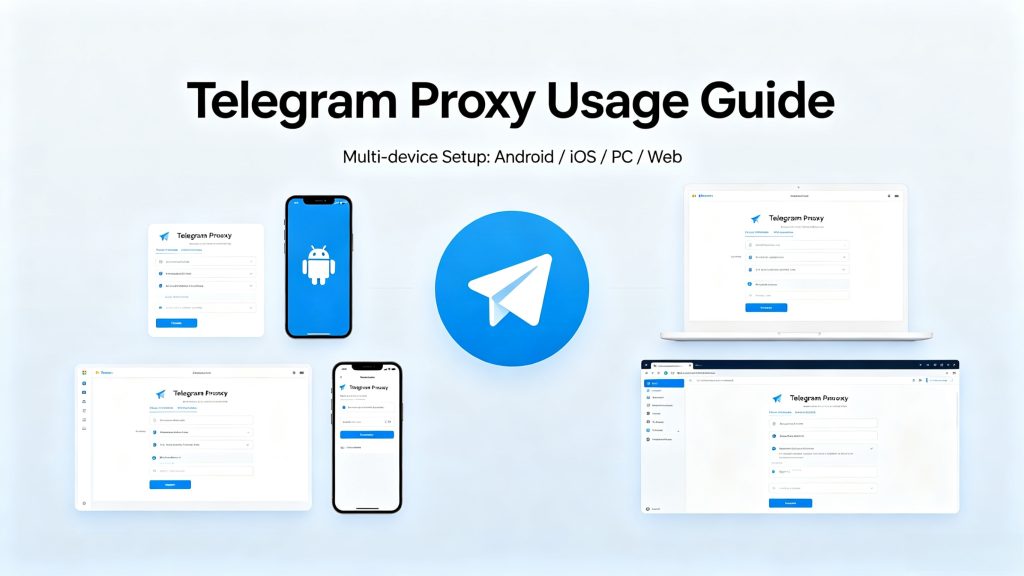
Table of Contents
Why Telegram May Not Work Properly in Some Networks
Before understanding how to use a proxy for Telegram, it’s important to know why connection issues happen in the first place.
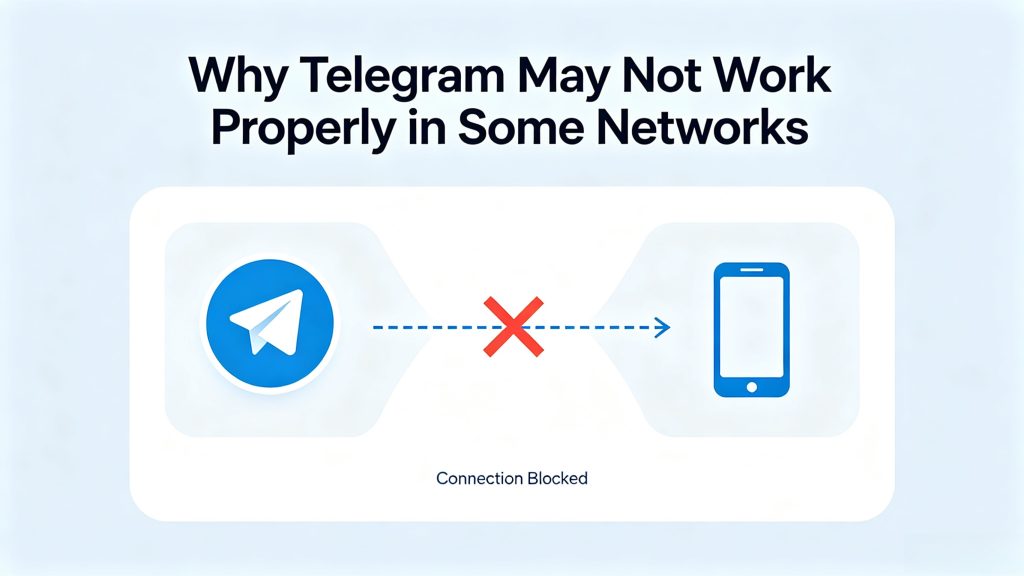
Telegram is built on a distributed infrastructure with global data centers. In most regions, it works smoothly without interruption. But in certain environments, access may be affected by:
- Network-level filtering by ISPs
- Local firewall rules or restrictions
- Restricted public Wi-Fi (schools, offices, airports)
- Traffic throttling during peak hours
- DNS or routing interference
In these cases, Telegram is still active, but the connection path between your device and Telegram servers is blocked or unstable.
A proxy helps by changing how your connection is routed.
What a Telegram Proxy Actually Does
A proxy server acts as an intermediate point between your device and Telegram.
Instead of connecting directly:
Your device → Proxy server → Telegram
This structure changes how your traffic is delivered without modifying Telegram itself.
A Telegram proxy is mainly used to:
- Bypass network restrictions
- Improve connection stability
- Reduce routing delays in certain regions
- Hide direct IP exposure from Telegram servers
Unlike a VPN, a proxy usually only affects Telegram traffic, not your entire device.
Telegram Proxy Types You Should Know
Telegram supports two main proxy protocols, and choosing the right one affects performance.
SOCKS5 Proxy

This is a general-purpose proxy protocol widely used across different applications.
It is often chosen because:
- It is simple and flexible
- It works beyond Telegram
- It supports username and password authentication
- It provides stable performance for messaging apps
MTProto Proxy
This is a protocol designed specifically for Telegram.
It is optimized for:
- Messaging speed
- Encrypted communication behavior
- Bypassing strict network restrictions
- One-click connection via proxy links
In restrictive environments, MTProto often performs better because it is tailored to Telegram’s traffic patterns.
When You Actually Need a Proxy for Telegram
Not every user needs a proxy. But in some cases, it becomes extremely useful.
You likely need a Telegram proxy if:
- Telegram does not open at all in your region
- Messages fail to send or stay stuck in “connecting”
- Voice calls drop frequently or never connect
- Telegram Web cannot load in your browser
- Your network blocks messaging platforms
Search terms like “Telegram not working without VPN” or “how to access Telegram in restricted network” usually fall into this category.
How to Use a Proxy for Telegram on Android
Android is one of the most common platforms for Telegram users, and setup is straightforward.
Instead of relying on external apps, Telegram has built-in proxy support.
Step 1: Open Telegram Settings
Launch the Telegram app and open the main menu.
Step 2: Find Network Options
Go into settings and locate data or connection-related options.
Step 3: Open Proxy Settings
Inside the network section, you will find proxy configuration.
Step 4: Enable Proxy Feature
Turn on proxy usage to activate manual setup.
Step 5: Add Proxy Details
Choose either SOCKS5 or MTProto, then enter:
- Server address
- Port number
- Authentication details (if required)
- Secret key (for MTProto)
Step 6: Save and Test Connection
Once saved, Telegram will automatically attempt to connect through the proxy.
Telegram Proxy Setup on iOS (iPhone & iPad)
On iOS, the process is similar but slightly more simplified in layout.
Step 1: Open Telegram Settings
Go to the settings tab inside the app.
Step 2: Access Data Settings
Locate network or data configuration options.
Open proxy configuration settings.
Step 4: Add New Proxy
Select SOCKS5 or MTProto depending on your provider.
Step 5: Enter Server Information
Fill in required fields such as:
- Proxy host
- Port
- Username/password or secret key
Step 6: Enable Connection
Save and activate the proxy.
Once enabled, all Telegram traffic will route through the proxy automatically.
How to Use Proxy for Telegram on Desktop
Telegram Desktop is commonly used for work and communication, and proxy setup is equally simple.
Step 1: Open Settings
Click the menu icon and open settings.
Step 2: Go to Advanced Options
Find advanced or network configuration settings.
Step 3: Select Proxy Configuration
Choose custom proxy settings.
Step 4: Enter Proxy Details
Input server IP, port, and authentication details.
Step 5: Apply Changes
Save settings and restart Telegram if necessary.
After this, Desktop will route traffic through the selected proxy.
How to Use Proxy for Telegram Web
Telegram Web is slightly different because it does not include built-in proxy configuration.
To use a proxy with Telegram Web, you typically rely on:
Option 1: Browser Proxy Extension
Install a proxy extension in your browser, configure credentials, and activate it before visiting Telegram Web.
Option 2: System-Level Proxy Settings
Configure proxy settings directly in your operating system so all browser traffic is routed through it.
This is often used when:
- Telegram Web is blocked in a region
- School or office networks restrict messaging apps
- Users need quick browser-based access
How to Know If Your Telegram Proxy Is Working
After setup, it’s important to confirm everything is functioning properly.
You can check:
- Whether Telegram shows a connected status
- If messages are delivered instantly
- Whether your IP address has changed
- If media files load without delay
If everything works normally, the proxy is correctly configured.
Common Problems and What They Mean
Telegram Cannot Connect
Usually caused by incorrect server settings or blocked proxy nodes.
Slow Messaging or Loading
Often related to server distance or overloaded proxy traffic.
Authentication Errors
Happens when credentials or secret keys are incorrect.
Partial Connection (App Opens but Doesn’t Work)
May indicate protocol mismatch or regional blocking issues.
Switching between SOCKS5 and MTProto often helps.
Best Practices for Using Telegram Proxy
To get stable performance, a few simple practices help:
- Choose servers closer to your location
- Avoid overloaded or free proxy sources
- Use authenticated SOCKS5 when possible
- Switch servers if connection becomes unstable
- Test multiple configurations if needed
A well-chosen proxy can make Telegram feel almost identical to a normal direct connection.
Final Thoughts
Using a proxy for Telegram is not just a technical workaround—it is a practical solution for maintaining stable communication in restricted or unstable network environments.
Whether you are using Android, iOS, Desktop, or Web, Telegram’s built-in proxy support makes configuration relatively simple. Once properly set up, it allows users to regain access, improve stability, and maintain a smoother messaging experience.
For users searching for solutions like:
- how to use proxy for Telegram
- Telegram not working in my country
- SOCKS5 proxy Telegram setup guide
- MTProto proxy configuration steps
This method remains one of the most effective and lightweight options available.